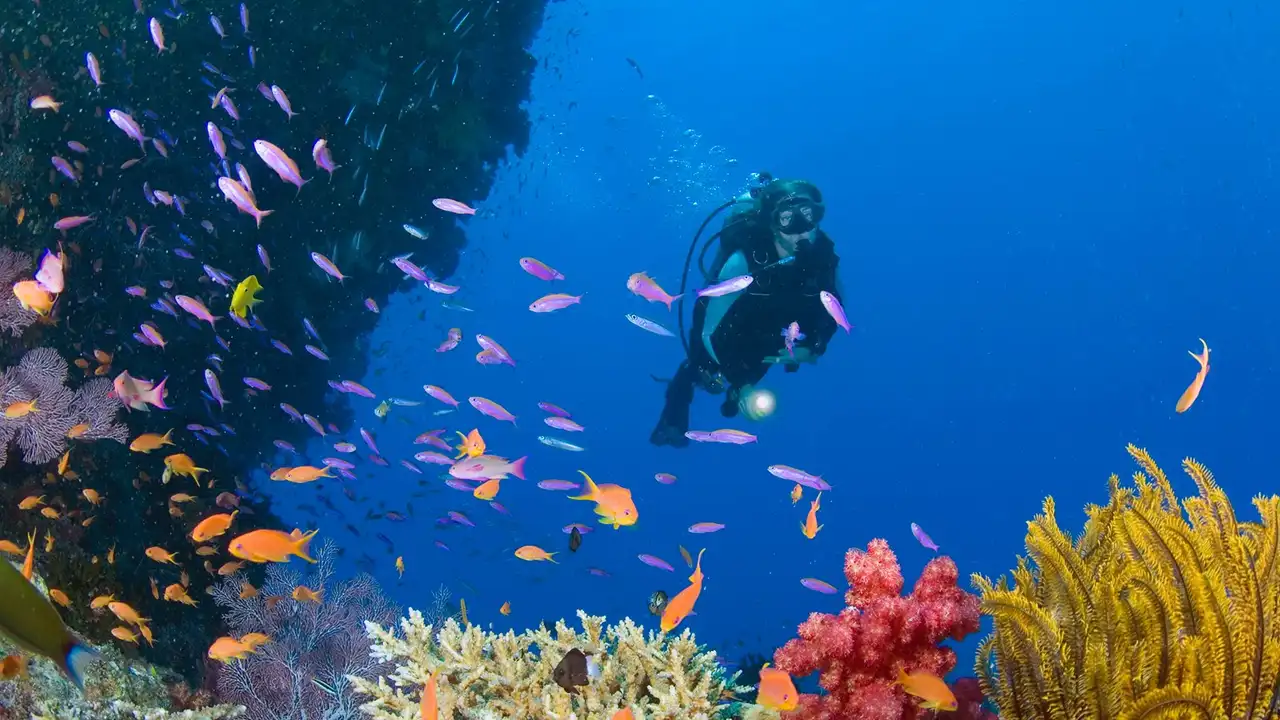
Top 3 Underwater Video Editing Software
Review of leading software for editing underwater footage, from basic cuts to color correction.
Review of leading software for editing underwater footage, from basic cuts to color correction.
Top 3 Underwater Video Editing Software
So, you've just returned from an epic dive trip, your memory cards are bursting with incredible underwater footage, and now you're itching to share those mesmerizing moments with the world. But wait! Raw footage, no matter how stunning, rarely tells the full story. That's where video editing software comes in. For underwater videographers, choosing the right software isn't just about cutting clips; it's about bringing out the vibrant colors, stabilizing shaky shots, and crafting a narrative that truly transports your audience beneath the waves.
Why Underwater Video Editing is Different
You might be thinking, "Video editing is video editing, right?" Not quite, especially when it comes to the underwater realm. The unique challenges of shooting underwater – color loss, particulate matter, motion blur, and often less-than-ideal lighting – mean that standard video editing techniques need a specialized touch. We're talking about:
- Color Correction and Grading: This is huge. Water absorbs light, especially red and yellow, making everything look blue or green. Your software needs robust tools to bring back those lost colors and make your corals pop and fish shimmer.
- Stabilization: Even with the steadiest hands, currents and buoyancy can lead to shaky footage. Good stabilization features are a lifesaver.
- Noise Reduction: Low light conditions often mean higher ISOs and more digital noise. Effective noise reduction can clean up your shots.
- Masking and Tracking: Sometimes you want to apply effects to only a specific part of the frame, like a particularly vibrant fish or a dark corner.
- Audio: While often less critical for pure underwater footage (unless you have a hydrophone!), surface shots and voiceovers need good audio editing capabilities.
Given these unique demands, let's dive into our top three picks for underwater video editing software, ranging from beginner-friendly options to professional powerhouses. We'll look at their features, ideal use cases, and even give you a ballpark idea of their cost.
1. DaVinci Resolve: The Free Powerhouse for Underwater Color Correction
If you're serious about video editing, especially color grading, and you're on a budget (or just love free stuff!), DaVinci Resolve is an absolute game-changer. Developed by Blackmagic Design, it started as a high-end color grading suite for Hollywood films and has evolved into a full-fledged, incredibly powerful non-linear editor (NLE) that rivals paid software. The best part? Its core version is completely free.
Key Features for Underwater Videographers:
- Unmatched Color Grading: This is where Resolve truly shines. Its node-based color correction system gives you unparalleled control over every aspect of your image. You can easily bring back reds and yellows, adjust white balance, and fine-tune saturation. It has dedicated tools like the 'Color Warper' and 'HDR Wheels' that are fantastic for underwater footage.
- Excellent Stabilization: Resolve's built-in stabilization is highly effective, helping to smooth out those wobbly shots caused by currents or fin kicks.
- Noise Reduction: While the best noise reduction tools are in the paid Studio version, the free version still offers decent options to clean up grainy footage.
- Fusion Page: For advanced visual effects and motion graphics, the Fusion page is incredibly powerful, allowing for complex compositing and tracking.
- Fairlight Page: A dedicated audio editing suite for professional sound design.
- Cut Page: A streamlined editing interface for quick edits, perfect for getting your clips together fast.
Ideal Use Case:
DaVinci Resolve is perfect for:
- Serious hobbyists and aspiring professionals who want to produce high-quality underwater videos with professional-grade color.
- Anyone on a budget who doesn't want to compromise on features.
- Users with powerful computers, as Resolve can be resource-intensive, especially with 4K footage and complex effects.
Comparison and Cost:
Pros: Incredibly powerful color grading, professional features, free version is highly capable, active community support. Cons: Steep learning curve for beginners, can be resource-intensive, some advanced features (like better noise reduction and AI tools) are locked behind the paid Studio version. Cost: Free for the standard version. DaVinci Resolve Studio costs a one-time payment of $295 (no subscription!), which is a fantastic value for the features it offers.
Recommended Hardware:
To run DaVinci Resolve smoothly, especially with 4K underwater footage, you'll want a decent setup. Aim for:
- Processor: Intel Core i7/i9 or AMD Ryzen 7/9 (or Apple M1/M2/M3 series).
- RAM: 16GB minimum, 32GB or more recommended.
- Graphics Card (GPU): NVIDIA GeForce RTX 3060/4060 or AMD Radeon RX 6700 XT/7700 XT or better, with at least 8GB VRAM.
- Storage: Fast SSD (NVMe preferred) for your operating system and project files.
2. Adobe Premiere Pro: The Industry Standard for Comprehensive Underwater Editing
Adobe Premiere Pro is arguably the most widely used professional video editing software in the world, and for good reason. It's part of the Adobe Creative Cloud suite, offering seamless integration with other Adobe applications like Photoshop and After Effects. While it comes with a subscription model, its comprehensive feature set and robust ecosystem make it a top choice for many underwater videographers.
Key Features for Underwater Videographers:
- Comprehensive Editing Tools: Premiere Pro offers a vast array of editing tools, from basic cuts and transitions to multi-camera editing and advanced keyframing.
- Lumetri Color Panel: While not as deep as Resolve's color grading, the Lumetri Color panel in Premiere Pro is very capable for correcting underwater footage. You can adjust white balance, exposure, saturation, and apply LUTs (Look Up Tables) specifically designed for underwater footage.
- Warp Stabilizer: Premiere Pro's Warp Stabilizer is excellent for smoothing out shaky handheld footage, a common issue when diving.
- Integration with After Effects: For more complex visual effects, motion graphics, or advanced noise reduction (via plugins), you can dynamically link clips to After Effects.
- Extensive Plugin Ecosystem: There are countless third-party plugins available for Premiere Pro, including specialized underwater color correction plugins (like Magic Bullet Looks or specific underwater LUT packs) that can further enhance your workflow.
- Cloud Sync and Collaboration: For teams or those working across multiple devices, Creative Cloud offers excellent sync and collaboration features.
Ideal Use Case:
Adobe Premiere Pro is ideal for:
- Professionals and advanced hobbyists who need a comprehensive, industry-standard editing suite.
- Users already invested in the Adobe Creative Cloud ecosystem (e.g., using Photoshop for photo editing).
- Those who value a vast array of tutorials and community support, as Premiere Pro has a massive user base.
Comparison and Cost:
Pros: Industry standard, comprehensive features, excellent integration with other Adobe apps, robust stabilization, vast plugin ecosystem, extensive learning resources. Cons: Subscription-based (can be costly over time), can be resource-intensive, color grading is good but not as powerful as Resolve out-of-the-box. Cost: Adobe Premiere Pro is available via a Creative Cloud subscription. A single app plan for Premiere Pro is typically around $20.99/month. The All Apps plan (which includes Photoshop, After Effects, etc.) is around $54.99/month. Annual plans are slightly cheaper per month.
Recommended Hardware:
Similar to Resolve, Premiere Pro benefits greatly from powerful hardware:
- Processor: Intel Core i7/i9 or AMD Ryzen 7/9 (or Apple M1/M2/M3 series).
- RAM: 16GB minimum, 32GB or more recommended for 4K.
- Graphics Card (GPU): NVIDIA GeForce RTX 3060/4060 or AMD Radeon RX 6700 XT/7700 XT or better, with at least 8GB VRAM.
- Storage: Fast SSD (NVMe preferred) for your operating system and project files.
3. Final Cut Pro: The Mac-Exclusive for Intuitive Underwater Storytelling
If you're a Mac user, Final Cut Pro (FCP) is a fantastic option. Developed by Apple, it's known for its intuitive interface, magnetic timeline, and optimized performance on Apple hardware. While it's Mac-only, its one-time purchase model and powerful features make it a strong contender for underwater videographers who prefer the Apple ecosystem.
Key Features for Underwater Videographers:
- Magnetic Timeline: This unique feature makes editing incredibly fluid, automatically snapping clips into place and preventing gaps.
- Optimized for Mac Hardware: Final Cut Pro is designed to take full advantage of Apple's Metal graphics technology and M-series chips, leading to incredibly smooth performance, even with high-resolution footage.
- Excellent Color Correction Tools: FCP offers robust color grading tools, including color wheels, color boards, and custom LUT support. It's very capable of bringing back the lost colors from underwater footage.
- Built-in Stabilization: FCP's stabilization is effective and easy to use, helping to smooth out those underwater jitters.
- Background Rendering: FCP renders in the background, allowing you to continue editing without interruption.
- Integration with Motion and Compressor: For advanced motion graphics and efficient video compression, FCP integrates seamlessly with Apple's Motion and Compressor apps.
Ideal Use Case:
Final Cut Pro is best for:
- Mac users who want a powerful, intuitive, and highly optimized video editing experience.
- Hobbyists and professionals who prefer a one-time purchase over a subscription model.
- Those who value speed and efficiency in their editing workflow.
Comparison and Cost:
Pros: Highly optimized for Mac, intuitive interface, magnetic timeline, one-time purchase, excellent performance, good color tools. Cons: Mac-only, less industry-standard for cross-platform collaboration compared to Premiere Pro, fewer third-party plugins than Premiere Pro. Cost: Final Cut Pro costs a one-time payment of $299.99 from the Mac App Store. This includes all future updates, making it a very cost-effective solution in the long run.
Recommended Hardware:
Final Cut Pro runs best on modern Apple Silicon Macs (M1, M2, M3 series) but also performs well on Intel Macs with dedicated GPUs.
- Processor: Apple M1/M2/M3 series (any variant) or Intel Core i7/i9.
- RAM: 8GB minimum, 16GB or more recommended for 4K.
- Graphics Card (GPU): Integrated Apple Silicon GPU is highly capable. For Intel Macs, a dedicated AMD Radeon Pro GPU with at least 4GB VRAM.
- Storage: Fast SSD (NVMe preferred) for your operating system and project files.
Beyond the Big Three: Other Notable Underwater Editing Options
While DaVinci Resolve, Adobe Premiere Pro, and Final Cut Pro are our top picks, there are other options worth considering, especially if you have specific needs or a tighter budget:
CyberLink PowerDirector: User-Friendly for Quick Edits
PowerDirector is a popular choice for Windows users looking for a feature-rich yet user-friendly video editor. It offers a good balance of ease of use and powerful tools, including decent color correction and stabilization. It's often praised for its speed and regular updates with new features. It also has a dedicated 'Action Camera Center' which can be useful for GoPro footage, offering lens correction and stabilization.
- Ideal Use: Beginners to intermediate users, Windows users, those who want a good balance of features and ease of use.
- Cost: One-time purchase (various versions, typically $99-$139) or subscription ($4.33-$19.99/month depending on plan).
Vegas Pro: A Different Workflow for Windows Users
Vegas Pro (formerly Sony Vegas Pro) has a loyal following, particularly among Windows users. It offers a unique, event-based editing workflow that some find incredibly intuitive and fast. It has strong audio editing capabilities and decent color correction tools. While it might not have the same market share as Premiere Pro, it's a very capable NLE.
- Ideal Use: Windows users who prefer a different editing workflow, those focused on audio, users who want a one-time purchase option.
- Cost: One-time purchase (various versions, typically $399-$599) or subscription ($12.99-$29.99/month).
CapCut / InShot (Mobile/Desktop): For Quick Social Media Shares
For those who primarily shoot with action cameras or even smartphones underwater and want to quickly edit and share on social media, mobile apps like CapCut and InShot are surprisingly powerful. They offer basic trimming, color adjustments, music, and effects. CapCut also has a desktop version that's gaining popularity for its ease of use and TikTok integration.
- Ideal Use: Social media content creators, quick edits, mobile-first workflows, beginners.
- Cost: Mostly free with in-app purchases for premium features/assets.
Essential Considerations When Choosing Your Underwater Video Editor
Beyond the features, here are a few more things to keep in mind when making your decision:
Your Skill Level and Learning Curve:
Are you a complete beginner, or do you have some editing experience? DaVinci Resolve, while free, has a steeper learning curve than, say, PowerDirector or even Premiere Pro for basic edits. Final Cut Pro is known for its user-friendliness on Mac. Be honest about how much time you're willing to invest in learning new software.
Your Computer's Specifications:
Editing 4K or even 8K underwater footage is incredibly demanding on your computer's processor, RAM, and graphics card. Ensure your system meets or exceeds the recommended specifications for the software you choose. A powerful GPU is particularly important for smooth playback and rendering, especially with color correction and effects.
Your Budget:
Are you looking for a free solution, a one-time purchase, or are you comfortable with a monthly subscription? Factor in the long-term cost, especially for subscription models.
Workflow and Ecosystem:
Do you already use other software from a particular ecosystem (e.g., Adobe Photoshop for photo editing)? Seamless integration can save you a lot of time and hassle. If you're a Mac user, Final Cut Pro's optimization for Apple hardware is a significant advantage.
Community and Resources:
When you run into a problem or want to learn a new technique, having a large, active community and plenty of tutorials available online is invaluable. All our top three picks have extensive resources.
Tips for Editing Your Underwater Footage
No matter which software you choose, here are some universal tips to make your underwater videos shine:
- Prioritize Color Correction: This is the single most important step for underwater footage. Use white balance tools, color wheels, and saturation adjustments to bring back the natural vibrancy. Consider using underwater LUTs as a starting point.
- Stabilize Judiciously: While stabilization is great, over-stabilizing can lead to a 'jello' effect. Apply it carefully and only when necessary.
- Cut to the Chase: Underwater videos can be long. Keep your clips concise and focus on the most interesting moments. A 2-3 minute highlight reel is often more engaging than a 10-minute raw dive.
- Vary Your Shots: Mix wide shots of reefs with close-ups of marine life. Include establishing shots and action shots.
- Add Music: Music can dramatically enhance the mood and flow of your video. Choose tracks that complement the underwater environment. Be mindful of copyright!
- Clean Up Particulates: While difficult to completely remove, some software and plugins offer tools to reduce the appearance of backscatter.
- Learn Keyboard Shortcuts: This will drastically speed up your editing workflow.
- Backup Your Footage: Always, always, always back up your raw footage and project files!
Ultimately, the best underwater video editing software is the one that fits your needs, budget, and skill level. Each of our top three picks offers powerful tools to transform your raw underwater footage into captivating stories. Download the free trials, experiment, and find the one that helps you best share the magic of the ocean with the world.
:max_bytes(150000):strip_icc()/277019-baked-pork-chops-with-cream-of-mushroom-soup-DDMFS-beauty-4x3-BG-7505-5762b731cf30447d9cbbbbbf387beafa.jpg)